Everything Vellum does for an architecture firm
This page describes each part of Vellum as it works today, with each plan's limits — and, at the end, what Vellum doesn't do yet.
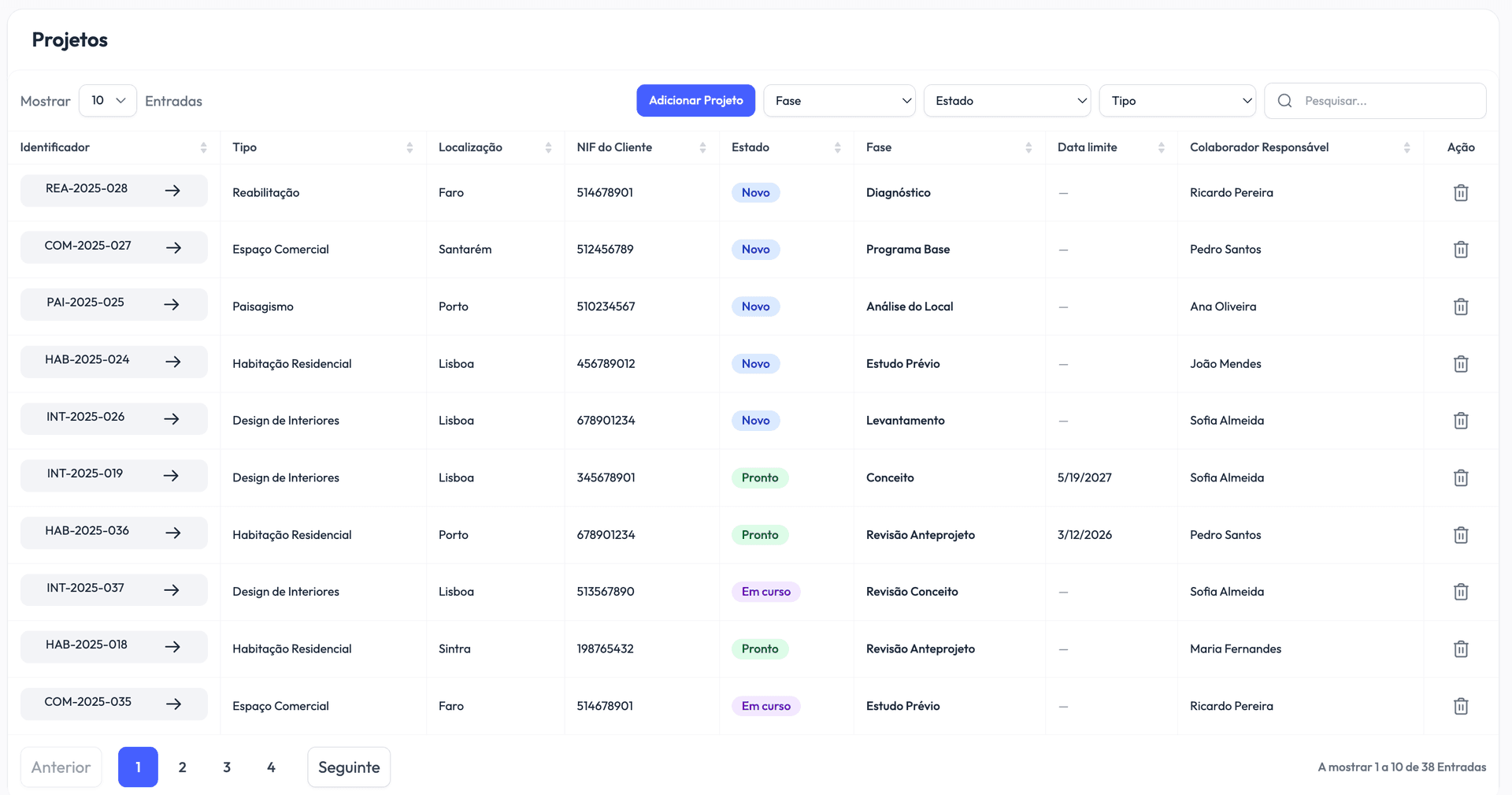
Projects that move through stages
Every project has an identifier that's unique within your firm, a client, an office and, if you like, a responsible employee. Its status says where it stands: New, Missing Documentation, Ready, Ongoing or Concluded. Statuses can move in any direction — a concluded project goes back to Ongoing if the client returns with changes.
While a project is Ongoing, the team records which stage it's in. Stages come from the project type, which describes the steps of your method — Preliminary Study, Permitting, Construction Documents — and the expected duration of each. The Stages History tab keeps the date of every change, and that's where the duration statistics come from.
The project list shows each project's status, stage, due date and responsible employee, and flags the ones past their due date. It filters by stage, status and type, and search looks through every field. On the dashboard, the daily summary brings together today's events and upcoming and overdue deadlines.
- Five fixed statuses, the same for the whole team.
- Custom project types: 2 on Free, 5 on Core and unlimited on Professional.
- Each stage's expected duration, stored in the project when you create it.
- One responsible employee per project.
- Projects past their due date flagged in the list.
- Up to 3 projects on Free (concluded ones count too); unlimited on Core and Professional.
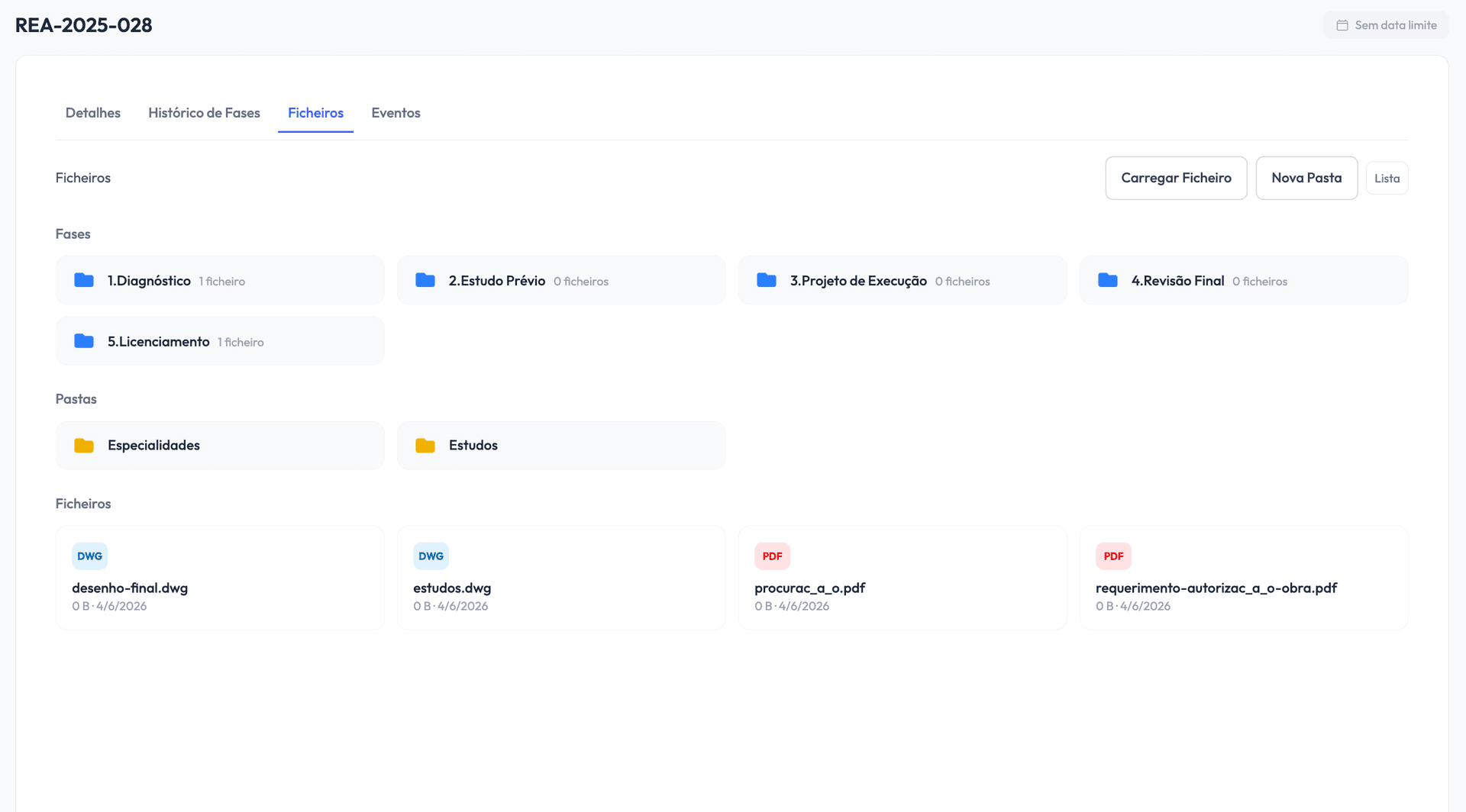
Files sorted by stage, with reviews
Every project has a Files tab with a folder for each of the project type's stages, plus any free-form folders you create for engineering disciplines, studies or client documents. You upload from your computer, up to 100 files at a time and up to 500 MB each.
Vellum accepts the formats an architecture firm works with: PDF, Office documents, images, ZIP, RAR and 7z, DWG, DXF and DWF, RVT and RFA, IFC, NWD and NWC, SKP, 3DM, OBJ, STL, glTF, FBX, 3DS, Blender and Cinema 4D files, and video. Files are stored ready to download, and open in each person's own software.
In stages marked as review, each file has a status — Pending Review, Approved or Changes Requested — and a history of who reviewed it, the decision, the note and the date. There are no automatic versions: a new version comes in as a new file, in a new submission (Submission #2, Submission #3…), and the earlier ones are kept with their history.
- A folder per stage, plus any free-form folders you create.
- Up to 500 MB per file and 100 files per submission.
- File-by-file review, by any employee at your firm.
- Review history with reviewer, decision, note and date.
- On the dashboard, the Projects Blocked in Review Stage box lists projects stuck in a review stage.
- Storage shared by the team: 3 GB on Free, 25 GB per seat on Core and 100 GB per seat on Professional, with extra 50 GB packs.
A portal for your clients
On the Core and Professional plans, each client can have a client-portal account: a web app at your firm's own address that works on a computer and installs on a phone. Your team creates the account, with an automatically generated password you can email to the client — nobody signs themselves up.
In the portal, the client sees their projects and the stages they're in. In stages marked as client review, they open and download the files and approve or request changes on each one, or on several at once; when requesting changes, the note is required. Each new submission in one of those stages emails them a link to the portal.
The client also sees the review history and the events they attend, which they can add to their own calendar, and can write to your firm from the portal. They can't upload files, and they never see other clients, your team, your firm's calendar or billing.
- Included on Core and Professional.
- Accounts created by your team, with a generated password and resets on request.
- Approval or change requests per file, with the note on record.
- Download links that expire after 15 minutes.
- Deleting a client also deletes their portal account.
Your firm's calendar
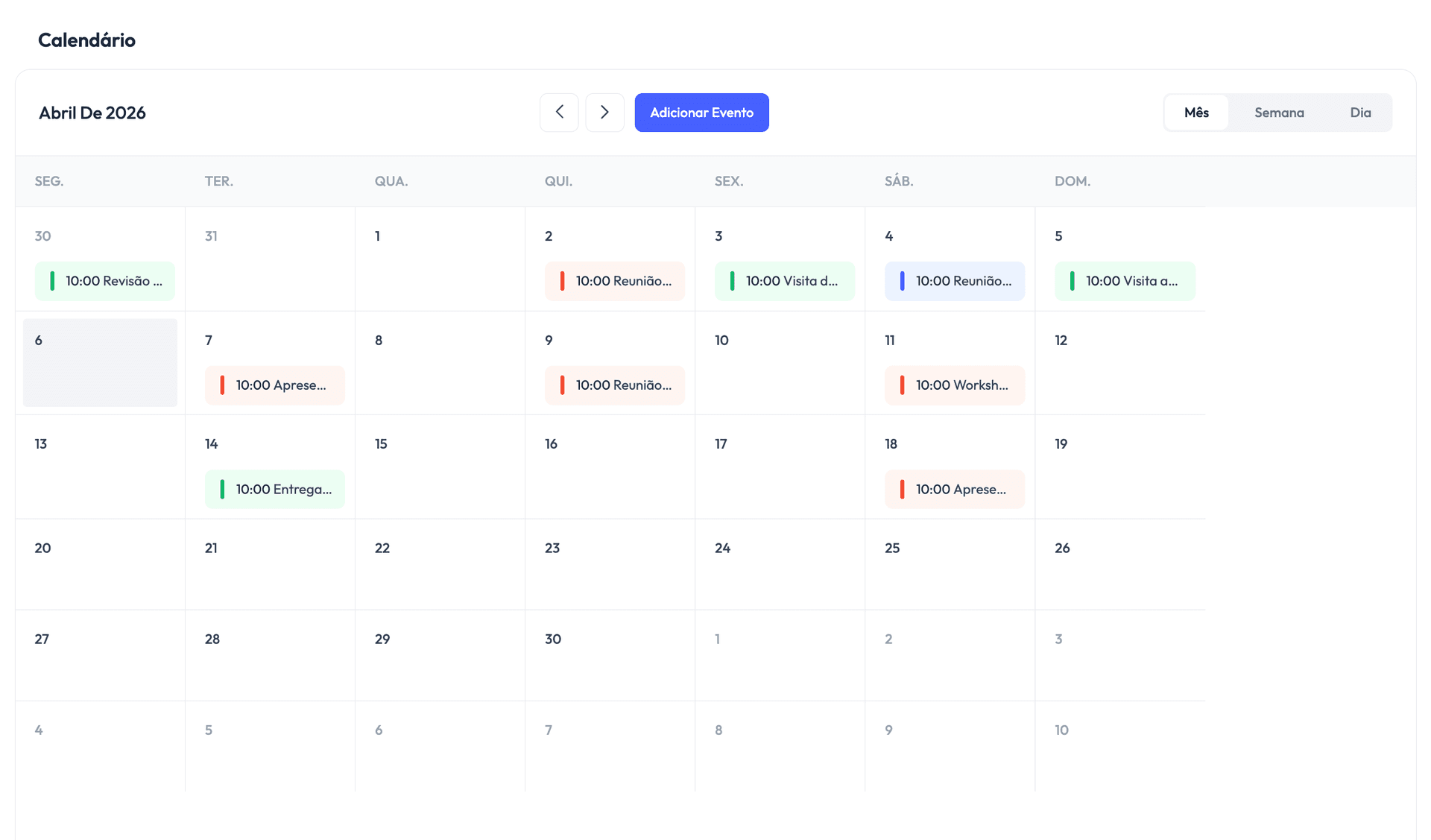
The calendar brings the whole team's schedule together, with month, week and day views. Every event has a title, a start and end time, an office and a type. Your company starts with three types — Meeting, Site visit and Deadline — and Admins can create others.
An event can be linked to a project, and then it also shows in that project's Events tab. You can invite employees and clients: each attendee has a status — Pending, Confirmed or Declined — and clients get an email when the event is created or changed, and see it in the portal.
- Month, week and day views.
- Custom event types, on top of the three starters.
- Team and client attendees, each with their own response status.
- Events linked to projects, shown on the project's page.
- No recurring events yet: each occurrence is its own event.
Statistics from the real work
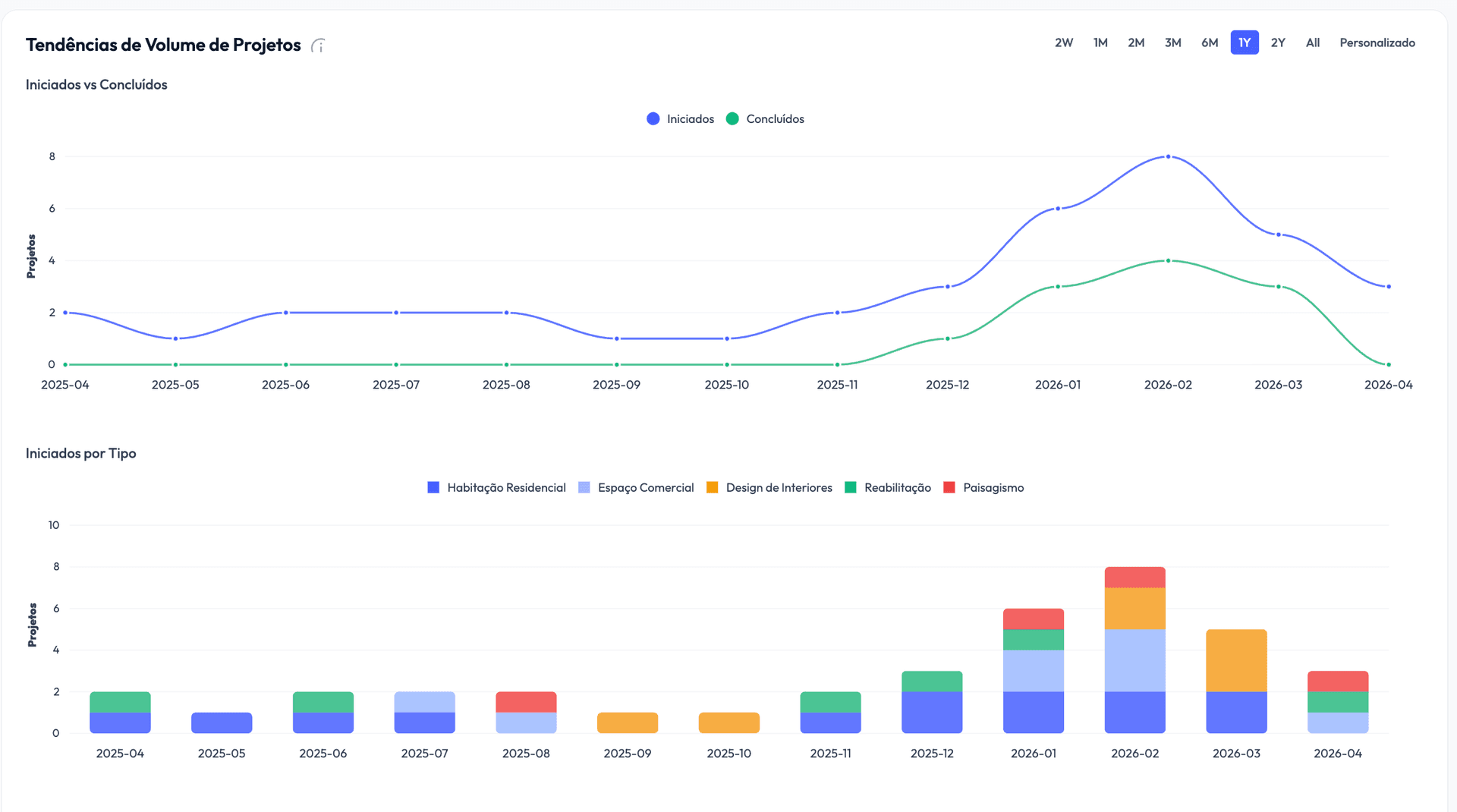
Statistics use what your team already records — statuses, stages and dates — with no extra work. How many tabs you get depends on the plan: Free has Pipeline; Core has Overview, Delivery and Project Types; Professional has eight tabs: Pipeline, Delivery, Clients, Volume, Type Mix, Stage Duration, Offices and Bottleneck.
On Core, you compare each stage's actual duration with the expected one, for concluded projects. On Professional, Stage Duration shows each stage's average days against the estimate, Delivery shows delays against the planned dates, and Bottleneck picks out projects stuck in Missing Documentation or waiting for the client's review, plus the ones that have been ongoing the longest.
- Free: Pipeline.
- Core: Overview, Delivery and Project Types.
- Professional: all eight tabs, including Stage Duration, Offices and Bottleneck.
- Worked out from day-to-day data, with no separate logging.
Several offices, one company
On the Professional plan, your company can have as many offices as it needs; Free and Core have one. Every project and every event belongs to an office, and Admins manage offices on the Locations page.
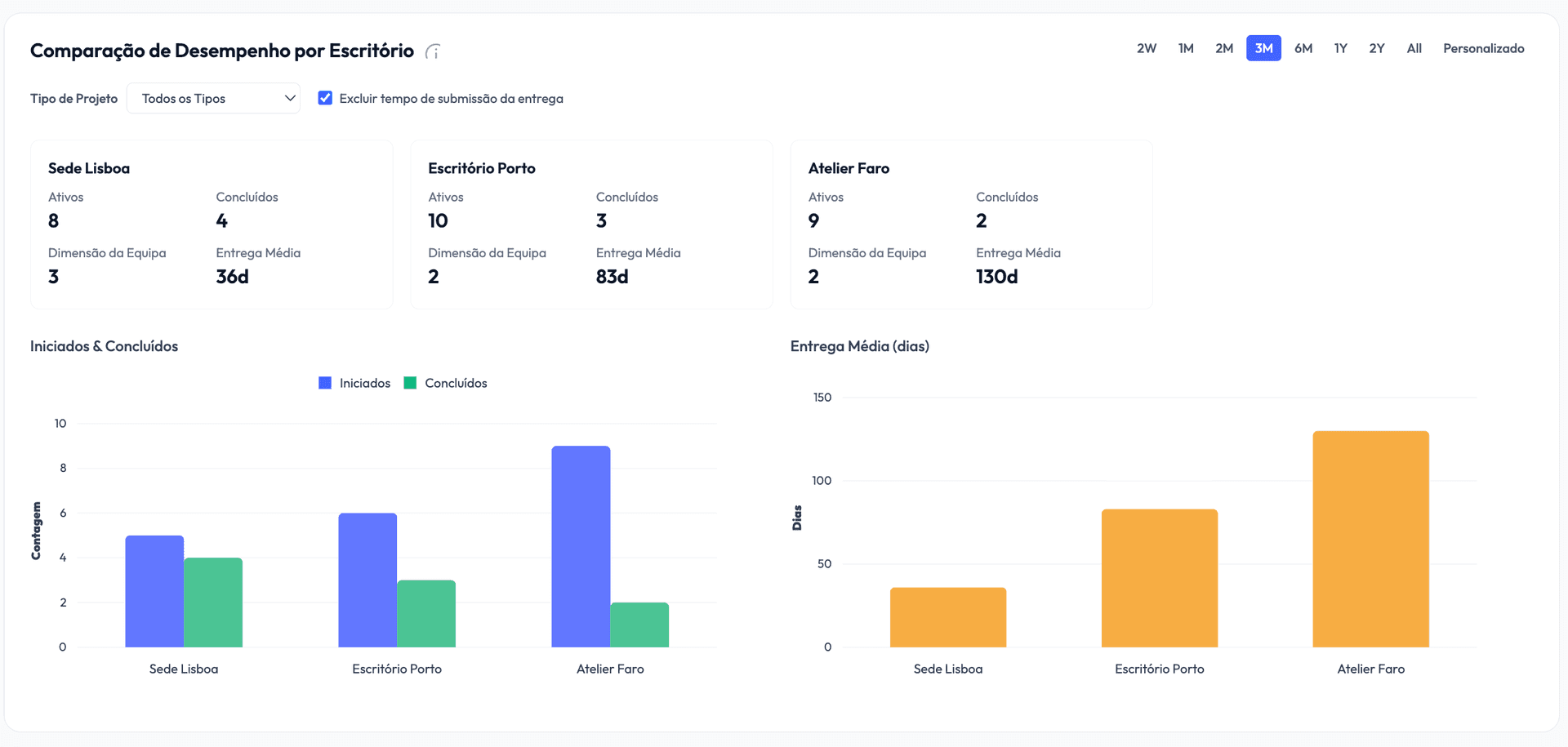
The Offices statistics tab compares the volume and performance of each office's projects. There are no per-office permissions: the whole team sees every office's work, which keeps information in one place when people work across branches.
- Unlimited offices on Professional.
- Every project and event linked to an office.
- Office-by-office comparison in the statistics.
Your team and permissions
There are two permission levels. General employees create and edit projects, clients and events, review files and can delete clients. Admins also manage employees, permissions, offices and project types, and can delete projects. Whoever creates the company is its owner: always an Admin, and the one who handles billing.
To join the team, an employee signs up and gets a 6-digit code, valid for 4 hours. They send it to an Admin, who enters it under Employees, and the employee joins as General. On Core and Professional, each person takes a seat on the subscription; Free is for one person.
Visibility is company-wide: every employee sees every project, client and event, so nobody waits for something to be shared with them.
- Two permission levels: Admin and General.
- The owner is always an Admin and manages billing.
- Joining the team with a 6-digit code, entered by an Admin.
- Per-seat billing on Core and Professional.
Change history
On the Professional plan, every project has a History Actions tab, and clients, employees and offices have a View history button. Each entry says who did what, and when: who created or updated the project, who added a stage, who reset a client's password.
When someone asks why a project changed, the answer is in the record itself, without relying on anyone's memory.
- History per record: projects, clients, employees and offices.
- Who took each action, what it was and when.
- Included on the Professional plan.
What Vellum doesn't do (yet)
So you can decide with everything in view, this is what Vellum doesn't do today:
- Invoicing certified by the Portuguese Tax Authority (AT) — invoices still come from your invoicing software.
- Time tracking per project or per person.
- Viewing or editing CAD/BIM drawings and models: files are stored and downloaded, and open in your own software.
- Per-project or per-office permissions: visibility is always company-wide.
- Two-step verification at sign-in.
Try it on your own projects
The Free plan has no time limit and needs no card: create your account, set up a project type and follow three real projects. When your team grows, Core and Professional come with 14 free days.